26.1 Release
Major updates and enhancements
Introducing Gazetteer Manager
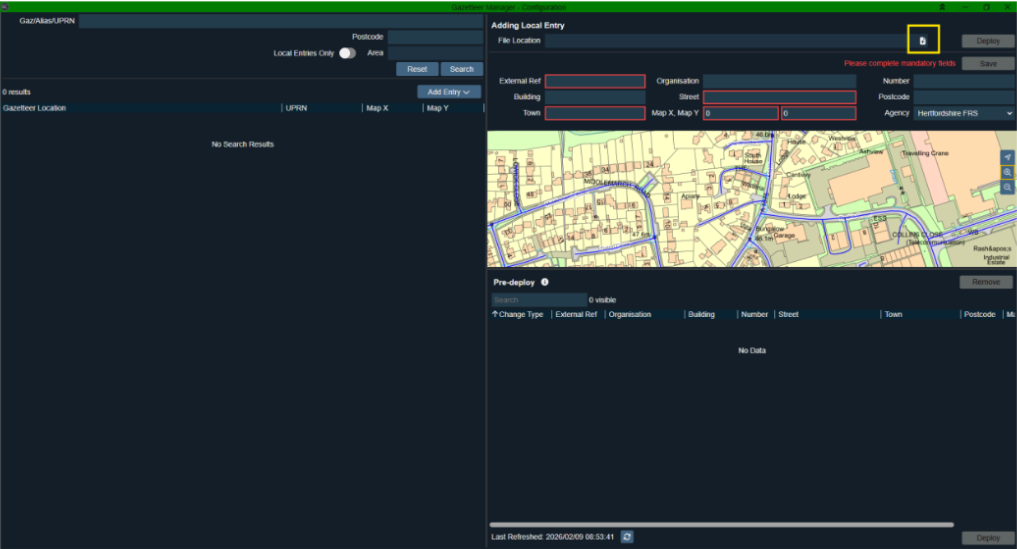
We’ve completely redesigned Gazetteer Manager with a brand new user interface, making it more user friendly and providing a simpler way to manage manual/local entries.
You can now easily handle your Gazetteer data using the new cloud-based Gazetteer Manager tools, which you can find on the Configuration Application Toolbar in Guardian CAD 26.1. Previously, you had to download and locally install an additional desktop app.
The new Gazetteer Manager also supports Hub working, meaning different agencies can work together smoothly to keep a shared Gazetteer up-to-date.
In 26.1, administrators can now:
-
Search for a Gaz/Alias/UPRN, postcode or area
-
Bulk-add local entries via CSV or add single entries through the UI
-
Edit and delete local entries
Pre-deploy area
Gazetteer Manager now includes a pre-deploy area. This staging mechanism lets you quickly add multiple local entries and group them into a single deployment. When you click ‘Deploy,’ the system bundles your changes and adds them to the deployment queue. This helps make sure only your individual changes are published, preventing you from accidentally deploying another agency’s updates while working in a Hub environment.
Change Only Update
The Change Only Update feature allows you to save valuable time by directly adding or updating entries. These updates bypass the pre-deploy area and are sent straight to the deployment queue.
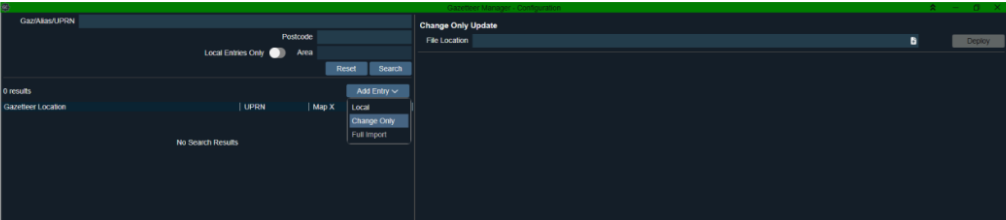
View deployment queue
Now you can quickly check the status of your deployments and see information about recent deployments from the last five days. You’ll find details such as the Change Type (Full Import, Manual Entry, Change Only Update), Deployment Status (Staged, In Progress, Failed, Complete) and any relevant failure messages.
Minor updates and enhancements
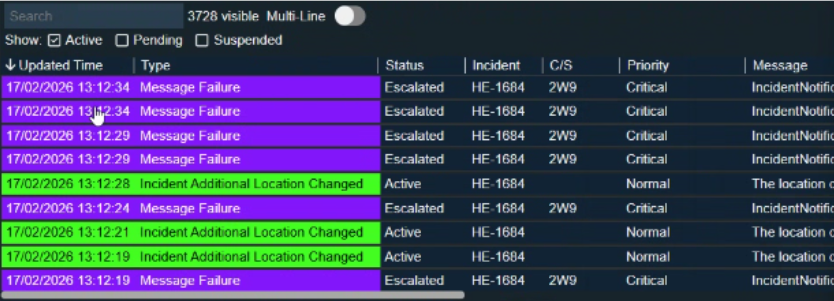
Updated time column
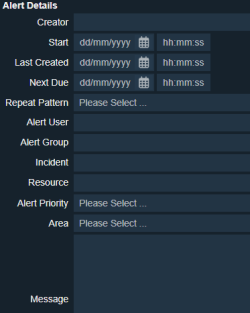
We’ve added a column in the Alerts window so operators can easily sort alerts by the last time they were updated. This minimises the risk that high-priority information is overlooked during an incident.
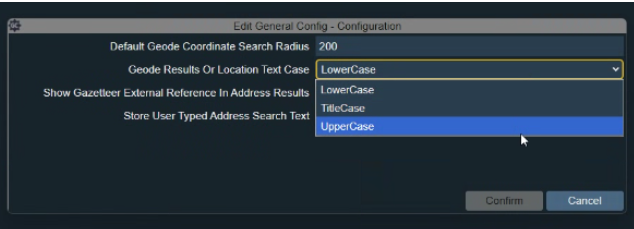
Improvements to incident type and location casing
The incident types and locations you see will now display the casing (either lowercase, uppercase or title case) exactly as it was entered in the Configuration app. This means that when you search for an incident type in the CTS or Incident List, the text in brackets will match how it was originally input, even for closed, late or test incidents.
Configuration screens
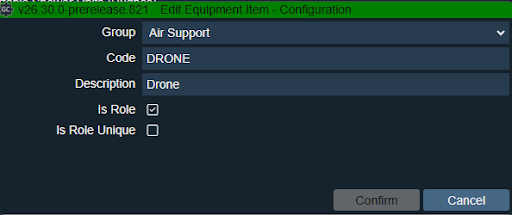
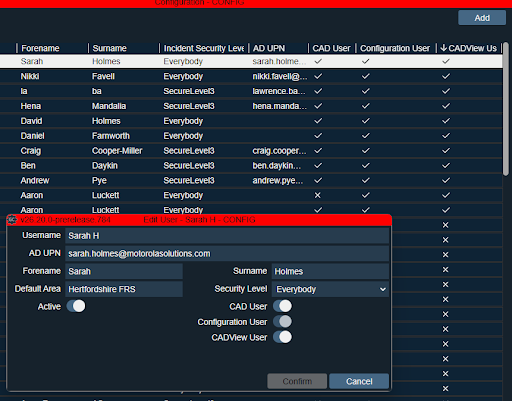
We’ve added new configuration screens for pre-defined texts, standby points, crew types, equipment and planned incident visit types. Administrators can easily apply system updates with improved performance and usability.
FireWatch integration improvements
Now, when you make a standby move in Guardian CAD, FireWatch automatically creates an event so your crews can see the details they need there. Also, if configured, when a resource type’s status changes in FireWatch (from red/amber/green), the corresponding resource type updates in Guardian CAD, letting you know the resource can only attend in a limited capacity.
Additional improvements