SVX product updates
June 2026
26.2 Release
New features
Holster trigger sensors
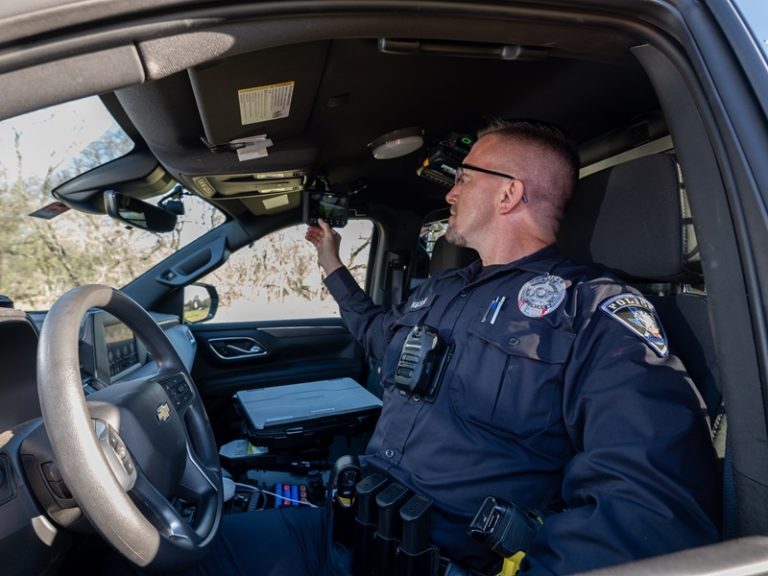
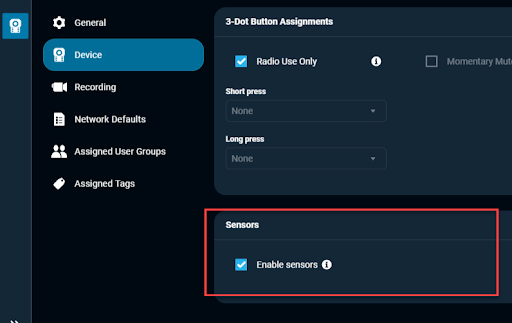
SVX now pairs directly with Yardarm Holster Aware sensors to immediately initiate video recording when a firearm or electronic weapon is drawn. It can support up to two sensors simultaneously. During initial Bluetooth pairing, sensors must be placed in close proximity to the SVX unit.
ID audio announcements
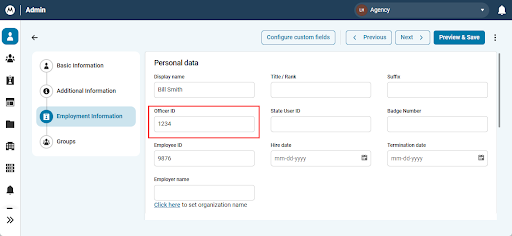
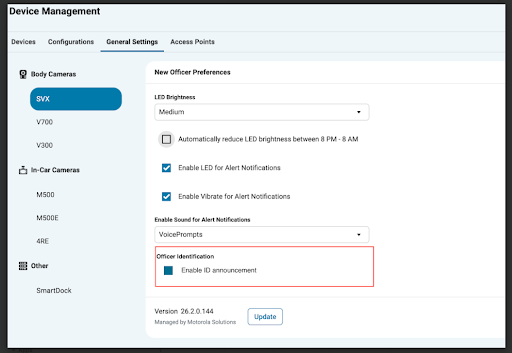
SVX can now announce an officer's assigned 3-8- digit Officer ID via a clear voice prompt upon removal from the Smart Dock, or when pressing the Status button. Officer IDs are sourced directly from CommandCentral Admin and apply to the unit upon checkout. Administrators can manage this prompt in CommandCentral DEMS under General Settings.
Enhancements
Tag last event during background uploads
Officers can now tag the last recording even if a previous event has begun uploading wirelessly in the background. A tag will automatically be applied once the tagging session timer expires.
Automated MPKI certificate renewal
SVX uses security certificates to authenticate with VideoManager EL, CommandCentral DEMS, SmartControl App and IOT Hub data gateway. The CommandCentral DEMS certificates are valid for the lifetime of the device. The SmartControl app and IOT Hub certificates are valid for 2 years. SVX units made before June 2026 do not have an IoT Hub certificate (used for SmartVideo streaming) and must obtain it through one of the methods below.
In order to continue normal SVX operation after the upcoming 26.3 firmware upgrade, please make sure one of the following four connection modes is available:
- Dock SVX in a Smart Dock (network port 49682 must be open in the agency firewall).
- Connect to the SmartControl PC app, version 26.3.1 or newer.
- Connect to Wi-Fi and plug to power over USB-C.
- Connect to an APX NEXT / APX N70 radio with an active SmartVideo service (LTE or Wi-Fi connection) and plug to power over USB-C.
Please note: Certificates are acquired and installed when the SVX is not in active use. Detecting power over USB-C is used as an indication that SVX is not in active use.
To learn more about SVX, click here.
Don’t miss the latest features or product news! Click here to update your communication preferences.
April 2026
26.1 Release
Major updates and enhancements
Bluetooth safety mode
The new Bluetooth safety mode introduces a manual override designed specifically for sensitive environments such as locker rooms, bathrooms or courthouses. When turned on, it temporarily pauses all wireless recording triggers from nearby devices, sensors and beacons. To maintain important functionality, a pulsing white light on the top of the device shows that safety mode is active, while critical emergency features remain fully functional.
Audio-only recording
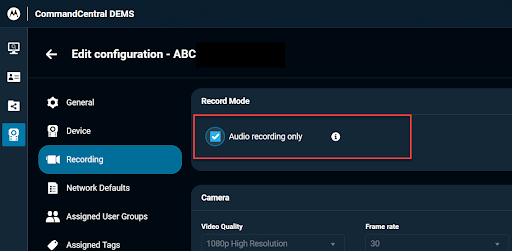
Agencies can now use the SVX as a dedicated microphone by turning on Audio-Only Mode through their digital evidence management system. This setting turns off camera functionality while continuing to capture clear audio, including background buffering and voice tags. All recorded audio uploads over Wi-Fi following standard evidence rules.
Covert operation independent of radio channel
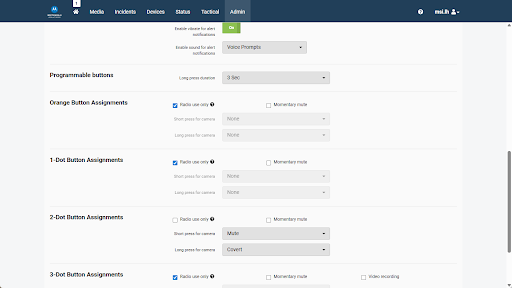
Officers can now manually switch the SVX into Covert Mode using a programmable button on the device, even if their paired radio is locked to a specific channel profile. This local control allows tactical operators to turn off all SVX lights at night to hide their position from potential threats, maintaining a dark camera posture regardless of the audio or appearance profile of the radio.
VideoManager EX support and SVX Smart Dock configuration
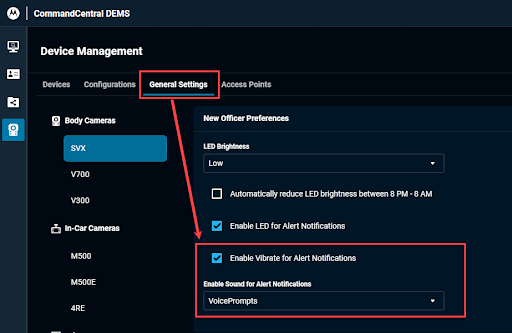
SVX is now compatible with VideoManager EX, allowing managers to easily track their camera fleet, use automatic Wi-Fi uploads and live stream video. Administrators can also generate encrypted setup profiles and load them via USB to get SVX Smart Docks up and running quickly. After a standard update, docked cameras may take a little longer to turn on while they run a routine storage cleanup. If an officer presses the status button during this time, a voice prompt will say "Upgrading, please wait" to let them know the camera is working normally and shouldn't be restarted.
Minor updates and enhancements
FIPS 140-3 compliance
SVX firmware is now FIPS 140-3 compliant, the current U.S. government standard for validating cryptographic modules used to protect sensitive information.
UL battery detection and mismatch notification
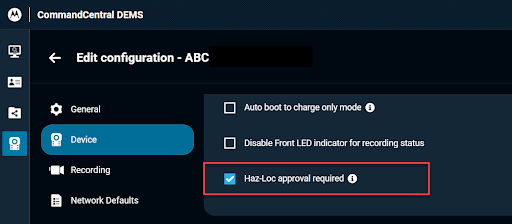
To protect teams operating in volatile settings, a firmware-level compliance check now automatically scans the hardware configuration of UL-certified (HazLoc) SVX units at power-up. Since UL-compliant and standard batteries appear identical, this warning mechanism prevents hazardous mix-ups that would invalidate the device's safety certification. If a non-compliant battery is detected, SVX delivers an audible "incorrect battery" voice announcement every 10 minutes.
New accessories
2-wire earpiece
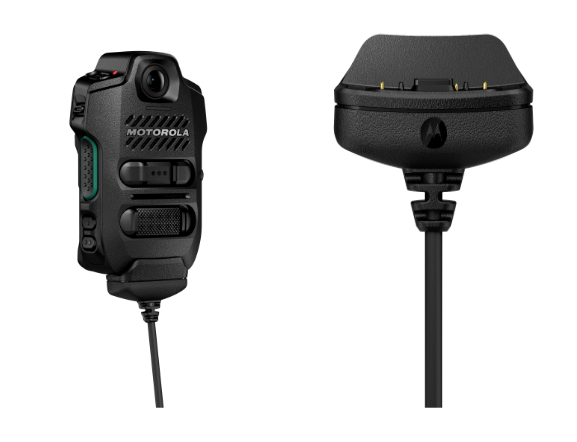
The PMLN8709A SVX 2-Wire Surveillance Earpiece accessory has been rolled out to preserve critical radio communications during loud assignments such as concerts or crowded sporting events. This specialized 2-wire accessory positions the microphone directly adjacent to the officer's mouth, successfully isolating outbound voice transmissions from background environmental interference.
SVX magnetic charging cable
The PMPN5038A Magnetic Charger Cable provides in-field charging for agencies running extended 12-hour Pittman shift profiles. By pairing the magnetic cable with the recommended 5V/2A vehicular power supply, officers can opportunistically charge their device while driving. This magnetic cable assembly features heavy-duty internal magnets and a custom uniform clip holder that allows rapid breakaway disconnects when an officer steps out of a vehicle seat.
To learn more about SVX, click here.
Don’t miss the latest features or product news! Click here to update your communication preferences.
January 2026
25.4 Release
Major updates and enhancements
Video playback with radio status in CommandCentral DEMS
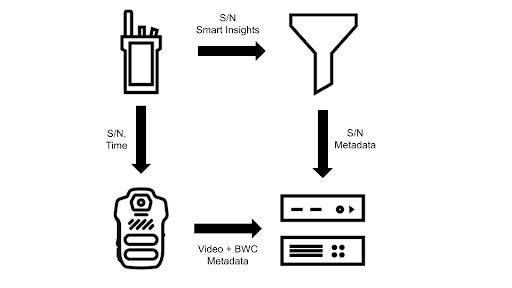
CommandCentral DEMS now automatically synchronizes and displays historical telemetry data from a paired APX radio directly alongside the standard video playback timeline. Key radio events captured in the logs – including selected channel modifications, transmission or reception of group calls, low battery alerts and emergency status changes – provide background clarity and context to video evidence about what actions an officer performed on scene.
Assist Chat
Assist Chat is now available on SVX. This platform functions as a secure voice gateway directly on the paired APX radio, enabling responders to query agency policies and protocols via voice commands. It delivers exact text-based answers while keeping critical LMR airtime clear for emergencies.
SmartVideo
SVX leverages the LTE or Wi-Fi service of a connected APX NEXT or N70 radio to seamlessly transmit location, recording status and live video streaming to CommandCentral Aware. To optimize critical operations in the field, a new "Broadband Preferred while Streaming" feature allows voice talkgroups to automatically switch from LMR to broadband when live streaming begins. This maximizes the priority given to video quality while securely establishing dynamic field tethering. To get the best video quality, using a 5GHz Wi-Fi network is recommended whenever possible. The system also prioritizes critical video uploads right from the field so command staff can quickly see what's happening.
Please note: "Broadband preferred while Streaming" should be used when agencies feel comfortable with their LTE broadband service coverage and quality. In areas with spotty broadband services, it’s better to leave SmartConnect Operation as “LMR Preferred”.
Peer Assisted Recording (PAR)
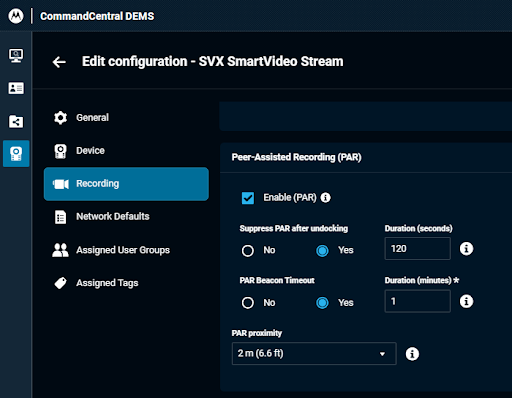
PAR helps cameras work as a team. When one camera starts recording, it sends out a secure Bluetooth shoutout to any other cameras nearby. If another device is close enough, it quickly triggers and also starts recording. When a police car turns on its siren or emergency lights, the M500 in-car system automatically signals nearby SVX cameras to begin recording. It’s a hands-free way to make sure you capture a situation from every possible angle.
SmartTranslate
This solution converts live conversation between English and more than 45 supported languages in real time. By holding down the ViQi button to speak and releasing it to listen, responders can maintain tactical awareness and look up or communicate freely without turning their focus away from a subject.
This feature works over Wi-Fi or LTE when paired with an updated APX NEXT or N70 radio. Users can choose a specific language manually or let the system automatically detect it. For convenience, audio automatically switches to the SVX speaker if you are wearing an earpiece and the session will automatically turn off after 90 seconds of silence so you can stay focused on the job.
Camera Only Mode
Camera Only Mode allows SVX units to be configured as traditional, standalone body cameras that operate independently without requiring a paired APX radio. In this standalone environment, users retain full access to video recording, evidence management, streaming and field upload functionality.
Privacy Mode
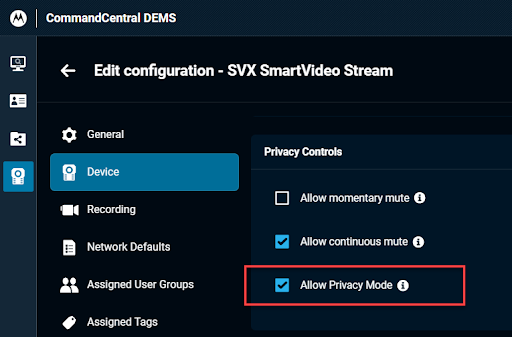
When toggled via a short press of an assigned programmable button, Privacy Mode suspends passive recording workflows, including pre-event buffering and Record-After-the-Fact operations. While active, SVX also ignores and blocks incoming external recording triggers such as CommandCentral Aware remote streaming commands, radio emergency activations and nearby PAR beacons. This also enables user privacy, when appropriate.
Minor updates and enhancements
Video category tags in Radio Help menu
The APX NEXT or N70 Radio Help menu now includes a list of available video category tags alongside existing voice commands so users can easily reference this information in the field . Users can quickly view these options by using the Voice Control command, "What can I say?". These tags are set up in VideoManager EL or CommandCentral DEMS, forwarded via Bluetooth and support English, French and Spanish.
SVX firmware and Battery Radio menu
Radio users can now easily monitor their tethered camera's status directly from the APX NEXT or N70 display. Navigating to the Bluetooth Info icon within the Bluetooth menu displays the current SVX firmware version. It also provides the exact SVX battery level, tracking life in clean, 1% increments.
Notifications
This update adds new notifications to SVX to provide users with more detailed feedback about their device status in the field, including:
- 10% low battery alert (voice)
- 5% low battery alert (voice; video features pause, microphone continues)
- On and Idle alert (white top LED)
- Status button (hear upload progress; silent over Wi-Fi, announces percentages when docked)
Battery hotswap
The SVX battery can now be replaced seamlessly while keeping the device running. When plugged into an external power source through a USB-C or magnetic charger, the device can run battery-free for up to 60 seconds. This feature requires a minimum 1.5A power supply to successfully keep the unit running during the swap.
Default volume level and LED brightness while in dock
To prevent loud disruptions at the station, the SVX automatically softens its settings whenever it is placed into a Smart Dock. The alert tone volume instantly drops down to 20% and the LED indicator brightness adjusts to the low setting. Once the camera is pulled out of the dock, it immediately switches back to its original volume and brightness levels.
System recovery UI update
If the battery is abruptly removed, the SVX requires extra time to process a full system recovery during bootup. To keep the user informed during this delay, pressing the Power/Status button will play an automated voice message. The device will clearly announce, "Shutdown error recovery, please wait," so officers know the camera is restored.
To learn more about SVX and its available features, click here.
Don’t miss the latest features or product news! Click here to update your communication preferences.
December 2025
Upload Video Over WiFi
In addition to streaming over WiFi, officers can now upload priority videos from their SVX to CommandCentral DEMS or VideoManager EL over WiFi – enabling evidence technicians to start building cases more quickly.
Video Upload Status
Officers can press the status (power) button on their SVX once to hear the upload status of their video. If SVX is uploading over WiFi, it will either announce “Uploading,” “Uploading Paused” or “Upload Complete.” If SVX is uploading in the Smart Dock, it will announce the specific upload percentage.